|
How to connect Windows Server via RDP & Initial Configuration Guide (Windows Server 2008 / 2012 / 2016 / 2019)
發佈人 , lastmodifiedby Adwin Xie 發表於 24 3月 2026 04:49 下午
|
|
|
Once your Windows VPS order is complete, you will receive an automated email from our system containing your VPS login credentials. The email will include the following information:
You can then log in to the Windows VPS via VNC or connect using Windows' built-in Remote Desktop. For more details, please refer to the guide below. Method 1: Log in via VNC using the VPS console 1. Please log in using the instructions in the VPS activation email you received. 2. After logging in, you will see the screen below; click where the arrow in the red box is pointing.
3. Next, please click on the area highlighted in red.
4. Continue clicking on the images
5. You will see the following screen. Please follow the instructions in the red box below: press Ctrl+Alt+Delete in VNC to unlock the screen, and you will see the usual login screen.
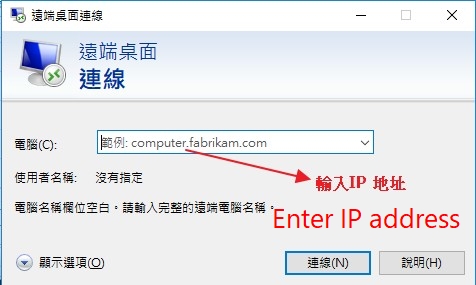
Method 2: Connect using Windows Remote Desktop 1. Please locate “Remote Desktop Connection” in the Windows Start menu, enter the IP address of your Windows VPS in the ‘Computer’ field, then click “Connect” and enter the Windows username and password provided in the server activation email to log in.
Note: The language of the Window system depends on what version you install. >> Learn more VPS Hosting solutions | |
 (0 votes) (0 votes) |